Skip to content
fastx product hero img
Fastx logo

FastX Takes Remote Linux X Windows to the Next Level

FastX displays high-resolution 2D & 3D X11 Linux applications with unsurpassed speed and security over LAN, WAN and Cloud networks

FastX Features

linux in your browser icon

Display Linux in your Browser

FastX uniquely offers 3 ways to access your remote Linux desktops and applications: a traditional desktop client; a unique browser client and also a way to start a desktop client session from the browser.

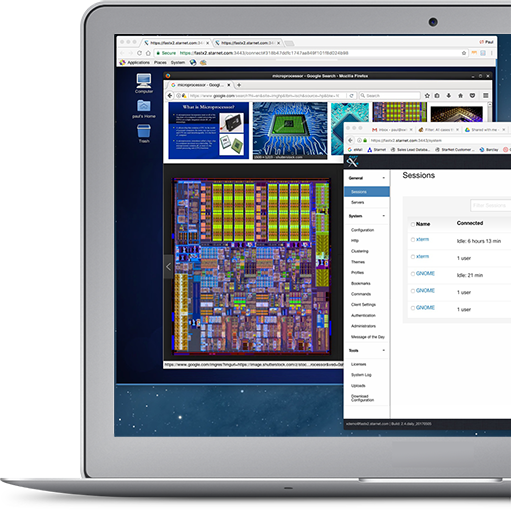
Every remote Linux display solution offers a desktop client. FastX offers desktop clients for Windows, Mac and Linux workstations. Uniquely FastX also allows you to connect to the FastX server (on the Linux host) using standard web browsers, like Chrome, Edge, Firefox and Safari. Now your Linux desktop or individual application is displayed in a Browser window like you see below.

Browser

Linux Desktop in the Browser

Being able to access your Linux sessions with a web browser adds tremendous value to the user.

Using the browser is just as safe and fast as the desktop client. The FastX browser client uses the same HTTPS security and encryption that banks and other financial institutions use.

The browser client has several other key advantages over desktop clients. For one, you can log into the FastX server from any device with a browser. That makes FastX extremely mobile. In addition, FastX does not take away additional real estate on your monitor as you already have the browser open for other applications like email. You just click the FastX tab to get to your FastX sessions. Furthermore, for the IT department, browsers save both time and resources because there is nothing to install on the end-user workstation and there never is a need to update the client.

Being able to access your Linux sessions with a web browser adds tremendous value to the user.

Using the browser is just as safe and fast as the desktop client. The FastX browser client uses the same HTTPS security and encryption that banks and other financial institutions use.

The browser client has several other key advantages over desktop clients. For one, you can log into the FastX server from any device with a browser. That makes FastX extremely mobile. In addition, FastX does not take away additional real estate on your monitor as you already have the browser open for other applications like email. You just click the FastX tab to get to your FastX sessions. Furthermore, for the IT department, browsers save both time and resources because there is nothing to install on the end-user workstation and there never is a need to update the client.

the in between solution

The “In Between” Solution

Finally, FastX also offers an “in between” solution. As the below image shows, when the user starts a session, from the browser, the user can decide to display their session in either a browser window or a desktop-like window. You don’t get the full desktop client user interface, just the display of your session.

the final result

The Final Result

So then it looks like this: A Gnome desktop in a desktop window next to the browser from which it was invoked

performance controls

Adjustable Performance Settings

There are many ways performance of the remote Linux display can be influenced, especially when it comes to LATENCY. You can have the best internet speed, but if your server is far away from the end user, latency will impact performance, especially for high-end graphics applications.

User Performance Control Settings 2

User Performance Control Settings

End users can change a number of parameters that impact performance, including the display protocol, JPEG or PNG, the frame rate and graphics quality.

FastX offers Admins to set up performance templates – using these variables– to provide end-users the best performance for different use cases.

For example, if you a running a graphics rich application and you want the fastest response experience when the latency is more than 50 milliseconds, then you select JPEG, move the Graphics quality bar to “medium” and also select “Draw Windows Updates Immediately”

Large Administrative Tool Set

Large Administrative Tool Set

FastX Administrator Panel

FastX Administrator Panel

FastX offers Administrators a broad range of tools from the Admin section. Many functions can be set with customizable scripts. Others are set with check boxes.

Performance Results Graphs

Performance Results Graphs

Under “Manage” Admins will find a Dashboard that graphically shows a range of performance results, such as the number of active users and sessions, as well as CPU and Memory consumption. See an example submitted by a large fastX customer:

Customizable Look-and-Feel

Customizable Look-and-Feel

Customized Branded FastX User Interface 2
Customized Branded FastX User Interface
Customized Branded FastX User Interface 3

Customized, Branded FastX User Interface

FastX allows Administrators to customize the look and feel of the fastX User Interface. You can use your organization logo and colors, for example. This will give end users a more comfortable experience. See some examples below

wayland support

Native Wayland Support

Wayland Support is currently in development with a planned completion and possible release by year’s end.

Integrated SLURM Support

Integrated SLURM Support

FastX integrates multiple job schedulers allowing users to leverage their existing IT infrastructure when provisioning sessions. FastX ships with a prebuilt SLURM scheduler which automatically configures FastX to launch sessions using the SLURM sbatch command and connecting back to the FastX cluster.

Prebuilt commands are available for logging, cancelling and managing their jobs all through the FastX interface

Advanced users can customize their scheduling scripts to add extra functionality.

GLX

Fully Integrated VGL Support

opengl application support

OpenGL Application Support

FastX supports modern OpenGL applications with integrated VGL and iGLX support that can easily be enabled by the Admin from the Application settings tools.

Multiple License Type Options

Multiple License Type Options

All FastX Licenses are Concurrent (Floating). Licenses are managed by the RLM license management server from Reprise Software. The License server can be installed on the same server as the FastX Server, or it can be installed on a central license server. See link below to the license server documentation.

When a user checks out a license from the pool, he/she can run multiple sessions on the same Linux server or cluster. Licenses remain in use until the user has terminated the last active session.

Customers who desire high availability can request a Fail-Over License which is installed on a separate system and takes over the license control should the primary license go down by accident or for maintenance.

Licenses can also be issued based on the number of concurrent sessions. So if you have a 10-session license, 10 users can run 1 session or 5 users can run 2 sessions each.

StarNet offers both Permanent and Subscription license programs. Check the Quote System to see the exact cost, including volume and customer-type discounts.

FastX offers the STANDARD license for stand-alone servers. Customers who run FastX in compute clusters will get the ADVANCED license as well which unlock cluster support and other advanced features. Check the Advanced Features panel to see which functions are activated by the advanced license

Persistent Connections

Persistent Connections

FastX is a Client-Server-based remote Linux access and display tool. That means once a session has started to run on the remote Linux server, it cannot go away unless the user terminates the session.

Users can now suspend their sessions at the end of the workday, turn off their workstation and resume the sessions the next day. Or they can resume the sessions from their computer at home.

In the old X11 PC-X server days, users would lose all their work when there was a network interruption or a “blue screen of death” crash of the PC. The persistency of FastX protects against such events. As long as the remote Linux server is up and running, users can always reconnect to their session

Integrate Our API

Integrate Our API

YES! You can fully integrate FastX with your Linux application! That means you control the User Interface to the point where FastX becomes virtually invisible. The user operates within your application which uses FastX to render the graphics.

For example, Cadence, the world premier IC design software company integrated FastX into its “CloudBurst” private cloud service. Now Cadence customers from around the world can run Cadence applications like Virtuoso by way of Cadence’s cloud service with FastX seamlessly providing IC engineers the Virtuoso interface.

API instructions:
The documentation for the FastX 4 API can be located by logging into the FastX4 server via a browser and going to:
https://server.example.com:3300/help/openapi
or to log in locally:
https://localhost:3300/help/openai
Note: By default, FastX uses port 3300. If the default port is changed, please use the custom port in the URL.

advanced authentication

Multiple Authentication Options

FastX supports a variety of security protocols. By default all traffic between the Linux host and client is encrypted by PuTTY SSH when using the desktop client and SSL/HTTPS when connecting with the browser.

FastX is also the first and only solution to allow authentication with SSH from the browser.

FastX provides built-in support for Authentication protocols including Multi-factor ID authentication, Open ID Connect, Single Sign-on, SAML, OKTA, Kerberos and public key support

cluster support

Advanced Cluster Support

Connect multiple systems in a cluster for a single access point to all your sessions. Define roles for specific systems to enable customized cluster configurations to fit any network topology. Multi-tier, Load Balanced, Proxy, and DMZ architectures are all supported

Smart Kubernetes Containers

Smart Kubernetes Containers

StarNet has developed a unique form of Kubernetes Cloud Container support that can save companies millions of dollars in cloud service fees!

Traditionally companies who move graphics applications to the cloud will set up cloud servers that can handle the CPU and Memory demand of the power users, engineers that run high-end EDA and CAD tools. Those servers can cost up to thousands of dollars per hour. The problem is that other engineers, who do coding, have to use those same servers while their CPU and Memory demands are extremely light.

What StarNet developed is a way for admins to assign each application in the tool box with sufficient CPu and Memory. So when the engineer kick off a cloud server, it is NOT the super-powerful one, but one that is tailored to the demands of his application

Clearly this FastX innovation will save your organization a lot of money.

FastX Documentation

FastX Documentation

StarNet offers a large library of Knowledge Base articles on a broad range of subjects. Topics can be retrieved using the search term function as well.

The Documentation Library can be found at www.starnet.com/help

FastX Support & Maintenance

FastX Support & Maintenance

The cost of StarNet’s Support & Maintenance program amounts to an annual fee equal to 15-20% of a new license. Customers are not required to pay for Support and Maintenance. Here are some reasons why the Support free is a good idea:

Services provided under our Maintenance Program include

  • New patch and full releases are freely available to all customers with licenses under Maintenance. With new builds of FastX becoming available once a month on average, the program offers great value. New builds feature the latest features, bug fixes and other improvements.
  • License support: Customers can obtain replacement licenses when changing workstations or license servers.

Services provided under our Technical Support include:

  • Priority Support: Customers under support typically have their support cases answered the same or next business day.
  • Telephone and email support during US Pacific time business hours.
  • Online Support system (Fogbugz )where customers file support issues. Cases are dealt with on a same or next business day basis.
  • Zoom/WebEx sessions to assist customers with installation & configuration issues or to debug technical issues.
  • Free Engineering support to implement new customer-requested functionalities.
  • Onsite support visits where possible.
  • Online support knowledge database with access to 100+ of articles detailing various aspects of the product.
Simple User Interface

Simple User Interface

FastX Makes Getting Work Done Intuitive

FastX Makes Getting Work Done Intuitive

FastX makes it intuitive for end users to get their work done. Admins provide users a palette of applications available to them. The user simply clicks the application and the application will display in either a browser or desktop window

Smart Copy & Paste Controls
Smart Copy & Paste Controls image
sessing sharing

Secure Session Sharing

Share Sessions With FastX

Share Sessions With FastX

FastX allows users to share sessions with other trusted users. The person who initiates the shared sessions has full control over who can participate, who has mouse and keyboard control, etc.

Simply start a session, and click the Sharing icon from the menu. Then list the user names of the people to be invited to the session. Here is a screenshot of some of the Sharing User Interface